Getting Started
Welcome to the Cardano Operations Course!
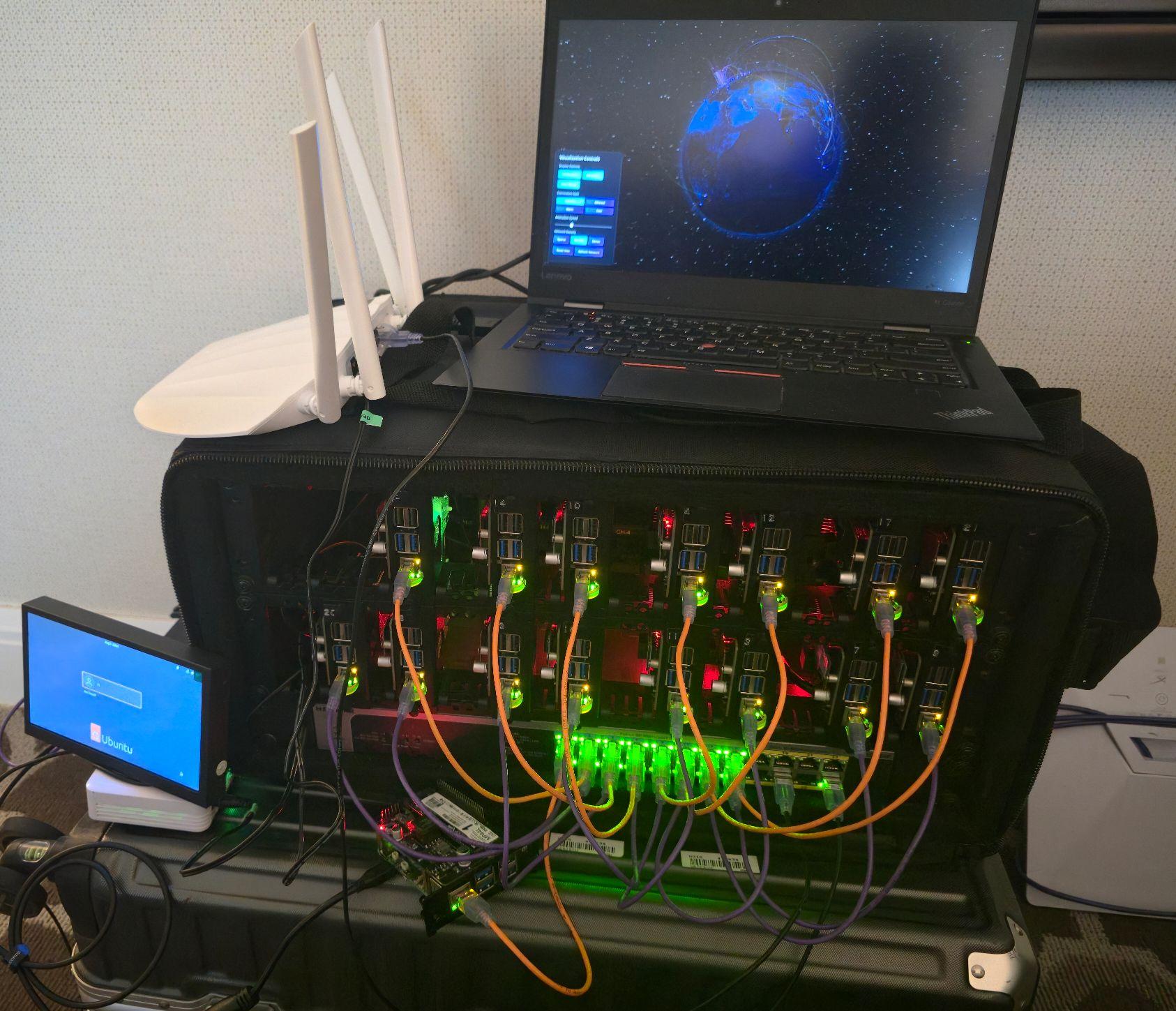
Connecting to your server via SSH
The first thing we need to do is connect to your server via secure shell (SSH).
Mac OSX and Linux (most distros) have the SSH client already installed. If you have a Windows machine, you'll need to install putty
We are not going to use a best practice for SSH today as we are relaxing security for ease of use for this lab exercise. In a production environment you will need to harden your SSH server connection methods.
Here's a short list of ways to harden SSH:
- Change default SSH port from 22 to a much higher number. 22 is commonly scanned and attacked via brute-force attacks and scanners typically start and ascend when looking for opened ports.
- Disable password authentication and use generated SSH keys only.
- Configure firewall to only allow SSH connections from specific IPs that you own.
- Install
fail2banor similar to limit authentication attempts to your server. - Configure a tunnel between devices using something like
wireguardoropenvpnbetween client and server.
First, we need to connect to your device with SSH.
For Mac OSX and Linux, use the following command.
Please note that the user "n" and IP addresses used here are for a preconfigured lab environment, and your IP address(es) will be different).
ssh n(X)@10.42.0.X
For putty users, make sure port is 22, protocol or connection type is ssh and that your IP is correct. Then open the connection.
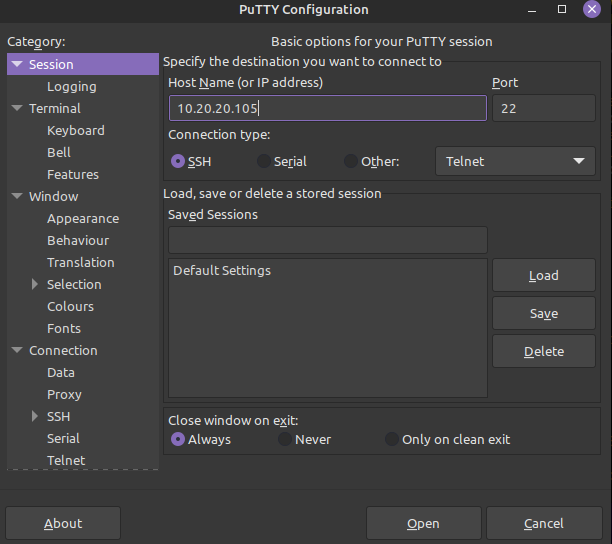
Replace the X, or whatever is in the last octet in 10.42.0.X with the correct information on your credential card, as well as nX
Time to get started!
Once you have connected it is time to get started!
Before we get rolling, let's check for updates/upgrades to our server. (These should be relatively up-to-date, so this hopefully won't take too long.
sudo apt update -y && sudo apt upgrade -y
Next, let's make a few working directories
cd
mkdir -p preview/{node,config,socket,test-db,scripts,bin,logs}
Now, let's add a few path items to our .bashrc file
Open your .bashrc file with a text editor
nano /home/n(x)/.bashrc
Then, note the following export lines and copy them at the end of the .bashrc file. Make sure to modify n(X) to your username when you do this.
export PATH="/home/n(X)/preview/bin:$PATH"
export CARDANO_NODE_SOCKET_PATH="/home/n(X)/preview/socket/node.socket"
Save with ctrl + o and exit the editor with ctrl + x
Let's source our bash file and then check our paths
cd
. .bashrc
echo $PATH $CARDANO_NODE_SOCKET_PATH
You should see the /home/n(X)/preview/bin:/home/n(X)/ and /home/n(X)/preview/socket/node.socket paths as part of the output